
Account & billing
Your account settings live in Settings: open the user menu at the bottom of the sidebar and click Settings. The settings have five sections: General, Security, Billing, Notifications and Integrations. Notifications and the Telegram connection are described in Notifications and Telegram.
The same user menu also has Language, Theme, Upgrade plan (or Manage subscription on a paid plan) and Log out. Under your name it shows your plan and, on a paid plan, how many days it has left.
Sign-in methods
| Method | Where | Notes |
|---|---|---|
| Continue with Google / Login with Google | ||
| Telegram | Continue with Telegram | Confirm in the Tradiflux bot: it asks "Sign in to Tradiflux in a browser?" and shows the device and IP. |
| Email and password | The form on /register and /login | Confirm your email with the link we send. The password needs at least 10 characters. |
| Passkey | Sign in with Passkey on the login page | Add a passkey in Settings → Security first. |
Sign in with Telegram
- Click Continue with Telegram.
- Open the Tradiflux bot (on a computer you can scan the code with your phone).
- Check the device and IP in the bot's message and press Sign in. Press Decline if you didn't start the sign-in yourself.
If your Telegram isn't linked to a Tradiflux account yet, the bot offers to create one in the app first. Telegram sign-in isn't available for an account with two-factor authentication: sign in with your email and password instead.
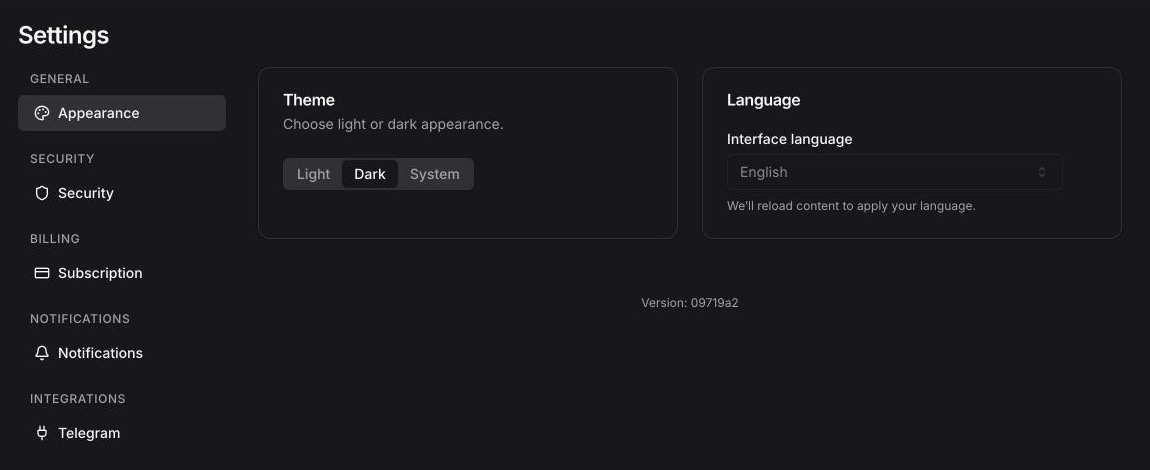
General settings
- Theme: Light, Dark or System.
- Language: English or Русский. The interface reloads in the new language.
- Version: at the bottom of the page. Include it when you report a problem to support.
Security
Password
Change password asks for the current password and the new one twice, at least 10 characters. If you signed up with Google, the section is called Set password: set one to be able to sign in with your email and to turn on two-factor authentication.
Two-factor authentication
- In Two-factor authentication, click Enable 2FA.
- Enter your account password and click Continue.
- Scan the QR code with an authenticator app (Google Authenticator, Authy and others), or enter the secret key by hand.
- Enter the 6-digit code and click Verify.
- Save the backup codes with Copy or Download, then click Done. Each backup code signs you in once if you lose your phone.
From then on, after your password you enter a code from the app. You can tick Trust this device for 30 days or click Use a backup code instead. To turn 2FA off, click Disable 2FA and enter your password.
Passkeys
Click Add Passkey and confirm with your device: fingerprint, face, PIN or a security key. Then use Sign in with Passkey on the login page. You can delete a passkey from the list at any time.
Active sessions
Active Sessions lists the devices where you're signed in; Current marks this one. Click Sign out next to a device, or Sign out all other devices.
Accounts created in Telegram
If you created your account inside Telegram, you can only sign in through Telegram at first. Settings → Security then shows Sign in with email instead of the password and 2FA sections:
- Enter an email and a password (at least 10 characters) twice.
- Click Send confirmation link and open the link from the email.
After that you can sign in with this email from any device. If the email already belongs to another Tradiflux account, sign in to that account and link Telegram there in Settings → Integrations.
Plans
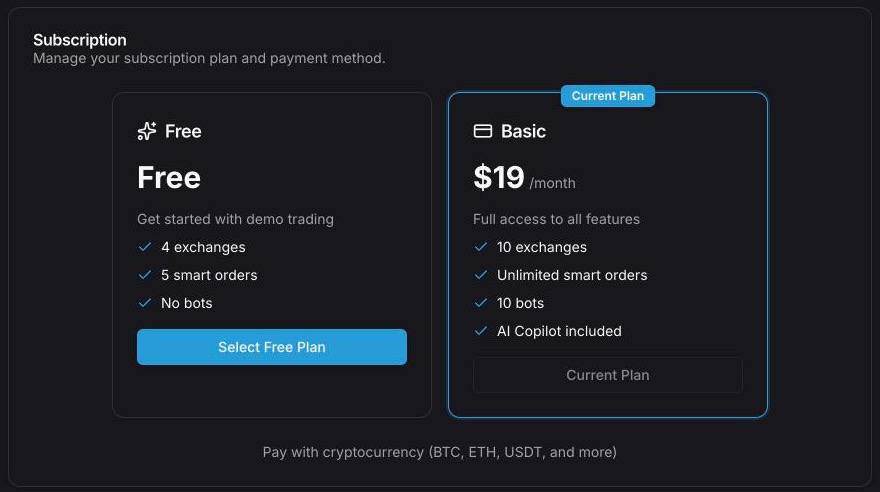
| Plan | Free | Basic |
|---|---|---|
| Price | Free | $19 per month |
| Exchange accounts (demo included) | 4 | 10 |
| Smart orders open at the same time | 5 | Unlimited |
| Bots | — | 10 |
| Active price alerts | 5 | 50 |
| AI assistant | — | Included, with $5 of AI credits a month |
- Smart orders count until they close, paused ones included.
- Bots count while they aren't archived: archive the ones you no longer need.
- Alerts count while they're active: paused and triggered one-shot alerts don't.
When you hit a limit, the app tells you which one, for example "You have reached the limit of 5 active smart orders. Close some or upgrade your plan."
Pay for Basic
You pay in cryptocurrency (BTC, ETH, USDT and others) through NOWPayments.
- Open Settings → Billing, or Upgrade plan in the user menu.
- On the Basic card, click Subscribe.
- On the NOWPayments page, choose a coin and send the amount it shows.
- When the payment is confirmed, Basic is active for one month from that moment. You return to Tradiflux with "Payment successful! Your subscription is now active."
Confirmation takes as long as the network needs to confirm the transaction. An invoice that expires or fails doesn't change your plan. If you paid less than the invoice asked, the plan isn't activated: write to support.
Renewal and expiry
A crypto payment covers one month and doesn't renew by itself, so there is nothing to cancel.
- The user menu shows the days left next to your plan.
- We email you 3 days and 1 day before the end, and when it ends. You can turn these emails off with Subscription email notifications in Settings → Notifications.
- When the month is over, your account goes back to the Free plan and its limits.
- To continue, click Subscribe again after your plan has ended. While Basic is active, its card only shows Current Plan.
Refunds are handled under our Refund Policy.
AI credits
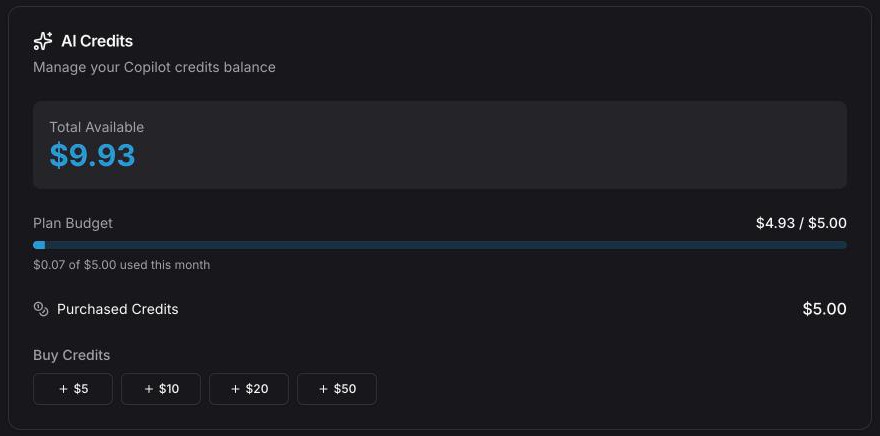
The AI assistant runs on AI credits, counted in US dollars. Each reply costs what the AI model charged for it, and voice messages also pay for the transcription. The AI Credits card in Settings → Billing shows:
- Total Available: what you can spend right now.
- Plan Budget: the $5 included in Basic, as "$3.20 of $5.00 used this month". It renews on the 1st of every month; unused budget doesn't carry over.
- Purchased Credits: credits you bought. They're spent only after the month's plan budget runs out, and they don't expire.
Buy credits
- In AI Credits, under Buy Credits, click $5, $10, $20 or $50.
- Pay on the NOWPayments page, as for the plan.
- You return to Tradiflux with "Credits purchased successfully". The credits are added once the payment is confirmed. If they don't appear under Purchased Credits after that, write to support.
Credits work only with the Basic plan: on Free the AI assistant replies "The AI assistant isn't included in your plan. Upgrade to use it." When both the plan budget and purchased credits are used up, it replies "Your AI credits for this month are used up. Top up credits in Settings → Billing to continue."
Billing inside Telegram
The full app also opens inside Telegram, but there you can't buy a plan or credits: Billing is hidden, and the page says "Subscription management isn't available in Telegram. Your plan and AI credits work here as usual." To pay, open tradiflux.com in a browser and sign in to the same account.
Support
- Support in the sidebar opens our support bot in Telegram, already linked to your account.
- Email: support@tradiflux.com, shown under the Support button.
- In Settings → Integrations, Support Chat links your Telegram to support so we know who's writing. You can also write without linking.
Portfolio & Stats
See what you hold across all your exchange accounts on the Portfolio page, and your realized PnL, volume and fees by day on the Stats page.
Exchanges
Which exchanges Tradiflux supports, how to connect an exchange account, switch between accounts, update API keys and delete an account.