
AI assistant
The AI assistant is a chat that sees live market data, your exchange accounts, your smart orders and your bots. Ask it about the market, send it a signal screenshot, ask it to draw levels or set an alert. It never trades on its own: every order, close or bot comes as a card that waits for your Confirm.
It works in the web app and in the Telegram bot. It needs the Basic plan.
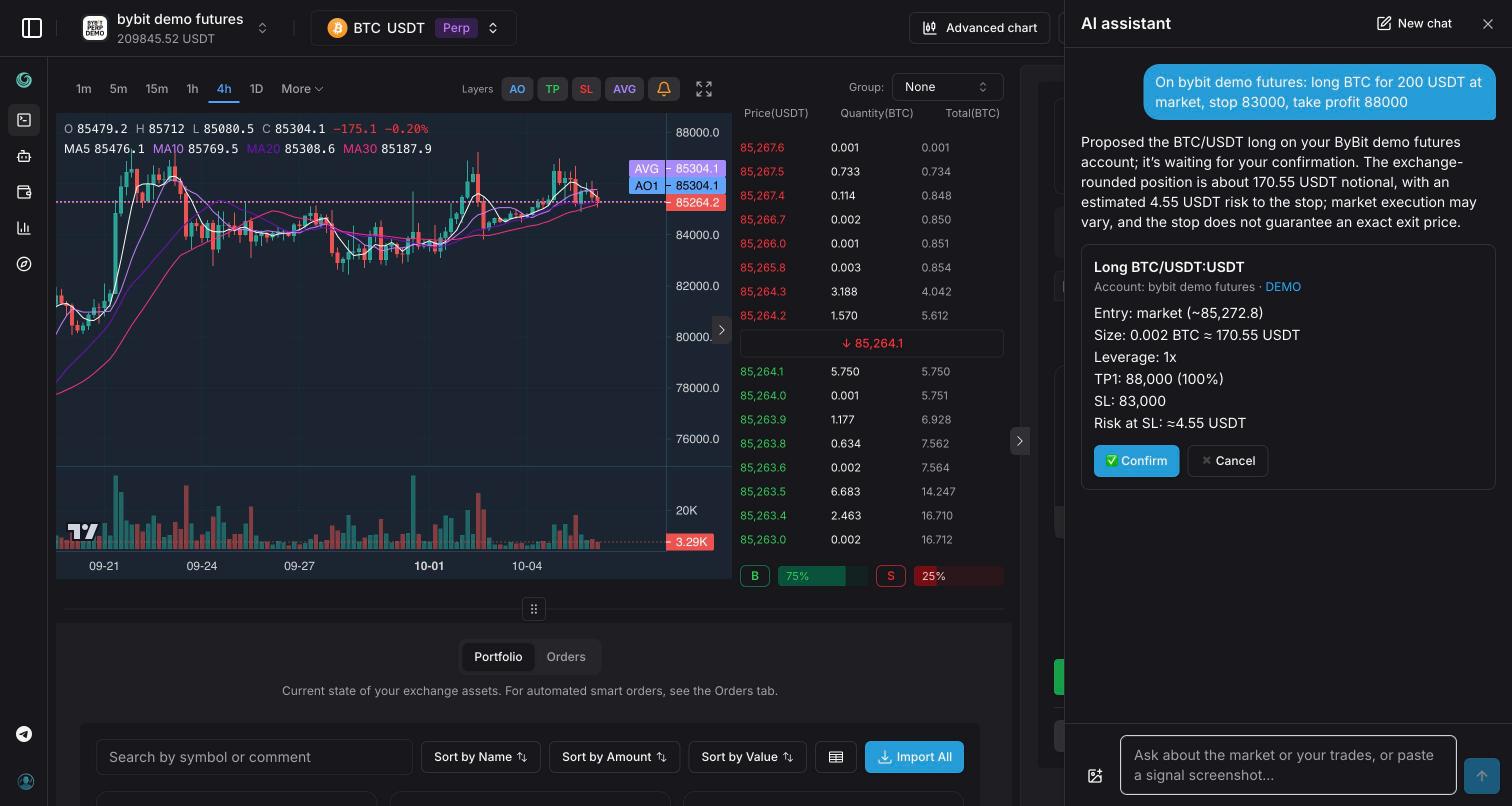
- New chat — starts a fresh conversation
- Message box — type a question or paste a screenshot; Enter sends, Shift+Enter adds a line
- Attach a screenshot — add up to 4 images to one message
- Proposal card — the order or bot the assistant prepared, with the account and a DEMO or ⚠️ REAL ACCOUNT badge
- Confirm / Cancel — nothing is placed until you press ✅ Confirm
Open the assistant
- Open the terminal or the Bots page.
- Click AI Assistant in the header. On a phone, tap ⋮ and choose AI Assistant — the chat opens full screen.
- Type a question or pick one of the suggestions shown in an empty chat.
The panel keeps your last conversation. New chat starts over with a clean history.
The assistant also opens on its own with a question already filled in when you press Ask the AI assistant on an open signal or Create this bot with AI on the Explore grid card.
What it can tell you
Everything it says comes from live data it fetches for the question, not from memory. If nothing explains a move, it says so.
- Market data — price, 24h change, funding, recent candles; for perpetuals also open interest and the share of accounts that are long.
- News — recent articles with links and dates, for a coin or for the whole market.
- Coin info — what the token is, market-cap rank, market cap vs FDV, circulating supply, age, distance from the all-time high, where it trades. It lists concrete risk flags but never calls a token "safe".
- Technical picture — support and resistance, trend lines, Fibonacci levels of the main swing, volume profile, and the latest Bollinger Bands, RSI, MACD and EMA 20/50/200.
- Your accounts — balances, your smart orders (entries, take-profits, stop-loss, filled size), your bots, and the open perpetual positions on the exchange, including positions you opened outside Tradiflux.
Note: The assistant can only close or change positions that Tradiflux manages as smart orders. To hand it a position you opened directly on the exchange, import it first: terminal → Portfolio tab → Import All.
What it does at once and what waits for you
| Done right away (no confirmation) | Proposed on a card (you confirm) |
|---|---|
| Set price alerts | Open a smart order (entry, take-profits, stop-loss) |
| Pause, resume, change or delete alerts | Close a smart order |
| Draw on a chart | Close part of a perpetual position |
| Move the stop-loss to a price or to break-even | |
| Start a grid bot, a DCA bot or a recurring buy | |
| Stop a bot |
Alerts and drawings only notify or show something, so they need no confirmation. Anything that sends orders to your exchange is a proposal.
Proposal cards
A card lists every parameter of the action: account, side, entry, size and notional, leverage, each take-profit with its share, stop-loss (or SL: none ⚠️), risk at the stop, break-even. The badge shows where it will run: DEMO for a demo account, ⚠️ REAL ACCOUNT for real money.
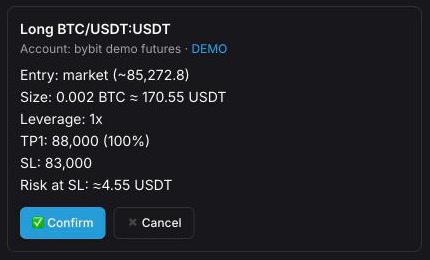
- Check the card, especially the account badge.
- Press ✅ Confirm to execute it or ✖️ Cancel to drop it. Typing "confirm" in the chat does not work — use the buttons.
- When it is done, the card shows ✅ Done and a link: Open terminal for orders, Open bots for bots.
What protects you between the proposal and your click:
- Cards expire after 15 minutes. An old card shows ⌛ Expired — ask again to get fresh prices.
- Prices are re-checked on Confirm. A market entry is refused if the price moved more than 1.5% since the proposal, or if it is already beyond the stop-loss or the first take-profit. A new stop on the wrong side of the price is refused, and so is a grid bot whose range the price has left. The card then shows ❌ Failed with the reason.
- Cancel is final. To change parameters, ask for a new proposal.
Orders and position management
Describe the trade in your own words: coin, side, entry (market or a limit price), size, take-profits, stop-loss.
- Size can be in USD (position notional, not margin), in coins, as a risk amount in USD, or as a risk % of the free balance. If you give a stop-loss but no size, the assistant risks 1% and says so.
- Leverage — if you don't name it on a perpetual, it picks the lowest leverage at which the margin fits in half of your free balance.
- Take-profits — several targets; without percentages the position is split evenly. Break-even moves the stop to entry after the first take-profit.
- Spot accounts — the assistant can open buys only. To sell a coin you hold through a smart order, ask it to close that order.
- Several accounts — if more than one fits, it asks which one. It uses a demo account only when you ask for demo trading.
For deals that are already running:
- Close — closes the position at market and cancels pending entries and TP/SL.
- Close part — closes a share of a perpetual position at market; the rest stays open and its TP/SL are resized. On spot, only a full close is possible.
- Move the stop — to a price you name, or to break-even (the average entry price).
More about how smart orders work: Smart orders.
Bots
The assistant can set up all three bot types and stop running ones. Bots need the Basic plan (up to 10 bots).
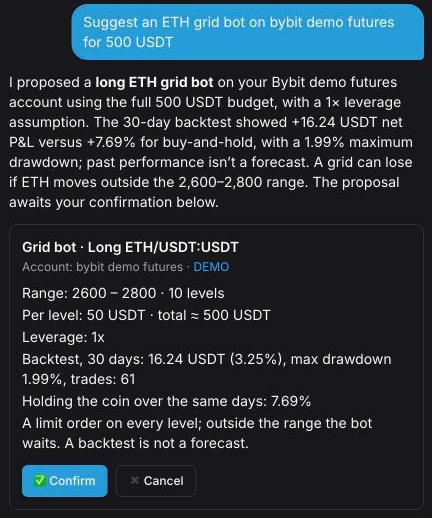
- Grid bot — for a ranging market. It picks a range from recent highs and lows, tries a backtest or two, and proposes the better one. See Grid bot.
- DCA bot — a base order at market, then larger safety orders further away as the price moves against it, and a take-profit from the average entry. See DCA bot.
- Recurring buy — a fixed amount every N minutes, hours or days on a spot account, optionally capped by budget, number of orders or end date. See Recurring buy.
- Stop a bot — either stop placing new orders and keep what is open, or for a grid bot also close its open deals at market.
Grid and DCA cards carry a backtest over the last 30 days: profit, max drawdown, number of trades, and what simply holding the coin would have made. A backtest is not a forecast.
Trading from signals
Send the assistant a trading signal: a screenshot of a chart, a post from a signal channel, or several posts forwarded at once.
- Paste or attach the screenshot, or paste the post text. You can add your own comment, e.g. "on demo, risk 0.5%".
- The assistant reads the symbol, side, entry, take-profits, stop-loss and the signal tag. On chart screenshots it reads the highlighted price labels (green = take-profit, red = stop-loss).
- If something is ambiguous, it tells you what it sees and asks instead of guessing. Otherwise you get a proposal card.
Follow-ups from the same channel work too. "Closed 1/3", "stop to breakeven", "closed the rest" or "cancel the limit" are not new trades: the assistant finds the matching smart order and proposes a partial close, a stop move or a close. If one of your take-profits has already filled that part, it says so instead of closing it twice.
Text in screenshots and forwarded posts is treated as data, never as instructions to the assistant.
Chart drawings
Ask it to draw: support and resistance, trend lines, Fibonacci, zones, or indicators — Bollinger Bands, EMA, SMA, RSI, MACD, VWAP, VPVR (volume profile). Levels and lines come from the candles of the timeframe you name; without one it uses 4h. Up to 3 charts per reply.
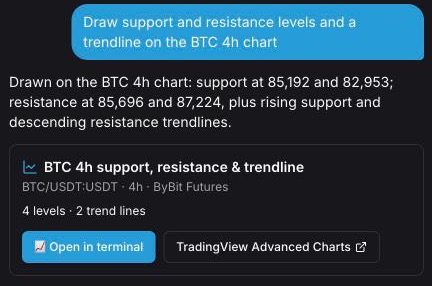
You get a chart card with what was drawn and two buttons:
- 📈 Open in terminal — your terminal with the drawing on the chart (shown when the drawing is on a market of one of your accounts).
- TradingView Advanced Charts — the same drawing on the public Explore chart, in a new tab.
Drawings in the terminal
In the terminal the drawing sits on the chart with a chip showing its title. If you switch to another symbol, the chip says Drawing for … with a Show button to go back. The × on the chip hides the drawing.
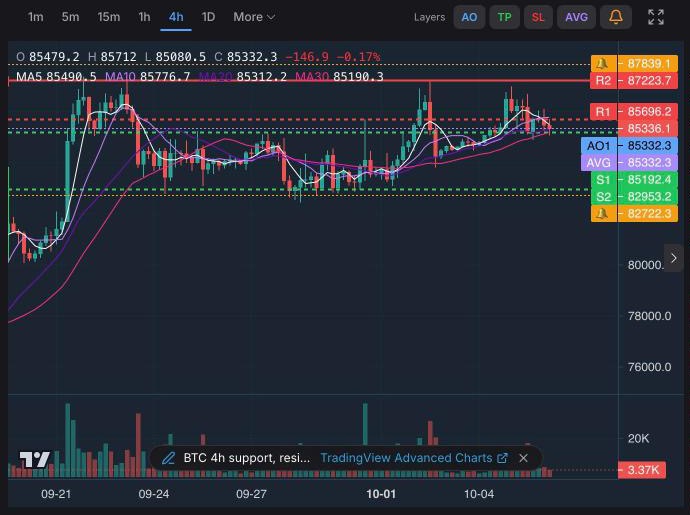
Drawing links are public: anyone with the link sees the chart. They contain only market data, never your balances or deals.
Price alerts
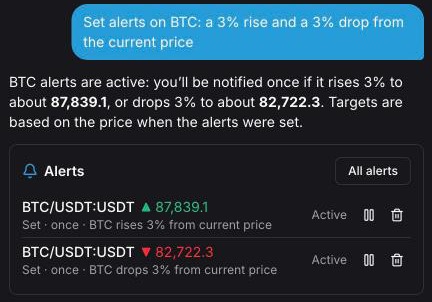
Alerts are set right away, without a card:
- at a price — "alert me when BTC hits 70,000";
- on a % move — "ping me if ETH drops 5%" (counted from the current price);
- on a drawn level, zone edge or Fibonacci level — "alert me when BTC breaks the nearest resistance" (it draws first, then sets the alert);
- on a sloped trend line — the alert follows the line as it moves.
By default an alert fires once; ask for "every time" to make it repeat. You can also ask "what alerts do I have", or to pause, resume, change or delete them.
The reply shows an alerts card: each alert with its status and Pause, Resume or Delete buttons, and All alerts to open the full list. Alerts set by the assistant are marked AI in Alerts → Manage, count toward your plan's active alert limit and are delivered in the app and in Telegram. See Price alerts.
Attachments
- Up to 4 images per message, each up to 5 MB, in PNG, JPEG or WebP.
- Attach with the paperclip button or paste from the clipboard into the message box.
- Images are read for that message only; the conversation history keeps a placeholder instead.
Example prompts
| Ask | You get |
|---|---|
| BTC price, funding and open interest | Live price, 24h change, funding, open interest and the share of longs |
| Why is ETH moving today? | Price and positioning plus 1–3 dated news links — or "nothing explains it" |
| Is PEPE risky to hold? | Coin facts and concrete risk flags (FDV vs market cap, supply, age, venues) |
| Where is support on SOL, 4h? | Levels, trend lines, Fibonacci and indicator readings |
| Draw support, resistance and VPVR on BTC daily | A chart card with Open in terminal and TradingView Advanced Charts |
| Alert me when BTC breaks the nearest resistance | A drawing and an alert on that level, set at once |
| What are my open deals? | Your active smart orders with entries, targets, stops and filled size |
| Long SOL at market, stop 140, TP 160 and 170, risk 1% | A smart order card sized so the stop loses 1% of the free balance |
| Move my BTC stop to break-even | A stop-move card |
| Close half of my ETH long | A partial-close card (perpetuals) |
| Grid bot on ETH in the current range, $500 | A grid bot card with a 30-day backtest |
| DCA bot on BTC, $50 base order, 5 safety orders | A DCA bot card with the order ladder and a 30-day backtest |
| Buy $20 of BTC every day on my spot account | A recurring buy card with the first order and the schedule |
| Stop my SOL grid bot | A stop-bot card |
| (signal screenshot) Take this on demo, risk 0.5% | A smart order card with the entry, targets and stop read from the image |
Safety limits
| Limit | Value |
|---|---|
| Card lifetime | 15 minutes, then it expires |
| Order size | Up to 5,000 in the quote currency (e.g. USDT) per order |
| Leverage | Up to 20x |
| Stop-loss | Required for leverage above 5x |
| Default risk | 1% of the free balance when you give a stop but no size |
| Market entry drift on Confirm | Refused if the price moved more than 1.5% |
If a limit or an exchange rule (minimum size, max leverage, balance) blocks what you asked, the assistant explains it and asks how to proceed instead of silently resizing the trade.
The assistant gives analysis, not financial advice.
Plan and AI credits
- Free — the assistant is not included: "The AI assistant isn't included in your plan. Upgrade to use it."
- Basic — includes $5 of AI credits per month. When they run out, purchased credits are used; if there are none, the assistant stops until next month or until you top up.
Every reply costs a little, depending on how much work it needed; voice messages in Telegram cost extra for transcription. Check usage and buy credits in Settings → Billing → AI Credits — see Account and billing.