
Price alerts
A price alert notifies you when the last price of a symbol crosses a level. Alerts only notify — they never place or change orders.
You can set alerts in three ways:
- in the Alerts dialog in the header;
- from the chart: right-click (or press and hold on a phone) → Alert at …;
- by asking the AI assistant.
Create an alert in the Alerts dialog
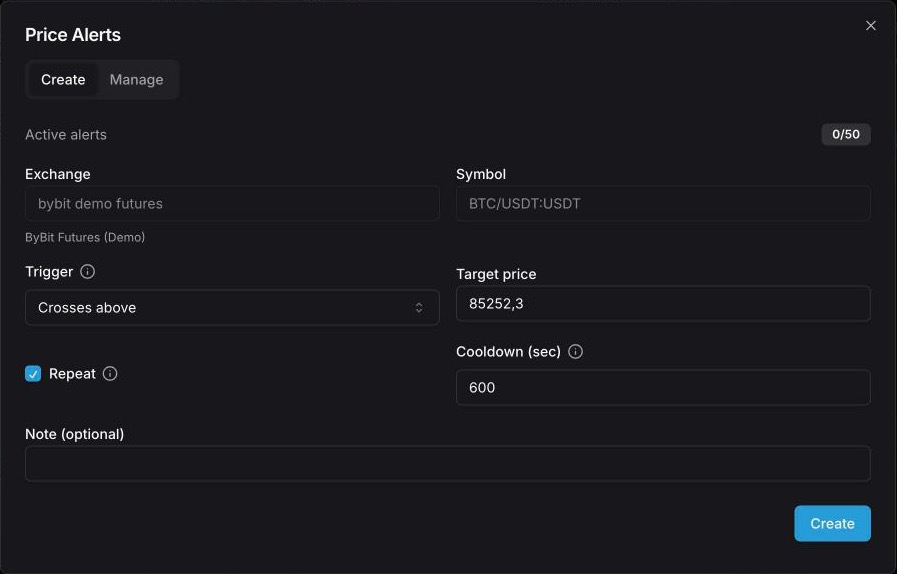
- In the terminal header, click Alerts (on a phone: ⋮ → Alerts). The Price Alerts dialog opens on the Create tab.
- Exchange and Symbol are taken from the terminal. To set an alert on another symbol, switch to it first.
- Choose the Trigger: Crosses above (the price rises from below to the target or higher) or Crosses below (it falls from above to the target or lower).
- Enter the Target price. The field starts with the current price.
- Leave Repeat on for an alert that can fire many times, or turn it off for a one-time alert.
- Set Cooldown (sec) — the minimum pause between two triggers of the same alert. Default 600 seconds (10 minutes).
- Optionally add a Note — it is shown in the alert list.
- Click Create.
Set an alert from the chart
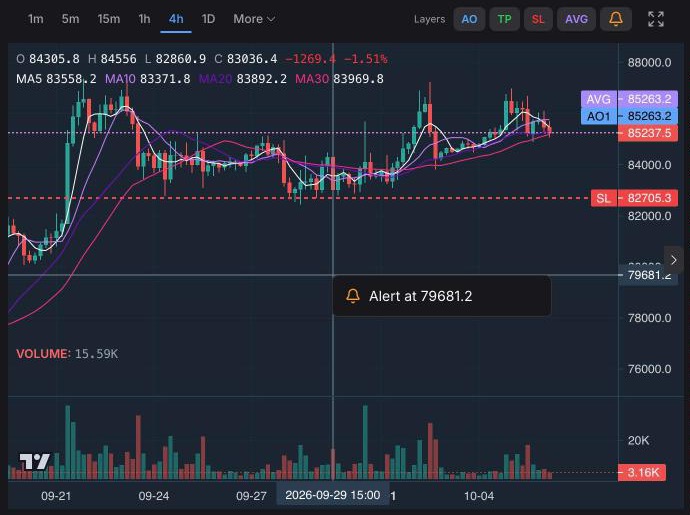
Right-click the terminal chart at the price you want (on a phone, press and hold) and choose Alert at …. The alert is created at once:
- the price is the one under the cursor, rounded to the market's tick;
- the direction is picked from the current price — above it becomes Crosses above, below it Crosses below;
- it is a one-time alert (Repeat off).
Alerts on the chart
Your active alerts on the symbol and exchange you are viewing appear on the terminal chart as dashed amber lines with a 🔔 label. The bell toggle in the chart's Layers shows or hides them.
To move an alert, drag its line. When you let go, the alert is saved at the new price and its direction is picked again: if the new level is above the current price it waits for a cross above, otherwise for a cross below.
Trend-line alerts
An alert can follow a sloped trend line instead of a fixed price — the AI assistant sets these when you ask for an alert on a trend line. Such an alert:
- shows 🔔↗ on the chart and a trend icon in the Manage list;
- sits at the line's current value, which the chart and the list update as time passes;
- can't be dragged on the chart. Editing its target in the list turns it into a regular flat alert at that price.
Alerts from the AI assistant
Ask the AI assistant something like "alert me if BTC drops 3%" or "alert me at the support you drew". It can set an alert at a price, at a percentage move from the current price, at a level, zone or Fibonacci level of a chart drawing it made, or on a trend line — once or repeating. It sets alerts right away, without a confirmation card, because alerts only notify. The assistant can also pause, resume, edit and delete your alerts.
Alerts set by the assistant carry an AI badge in the Manage list. They count towards the same plan limit as your own.
Manage alerts
The Manage tab lists all your alerts with their exchange, symbol, trigger, target, status, cooldown and the time they last triggered.
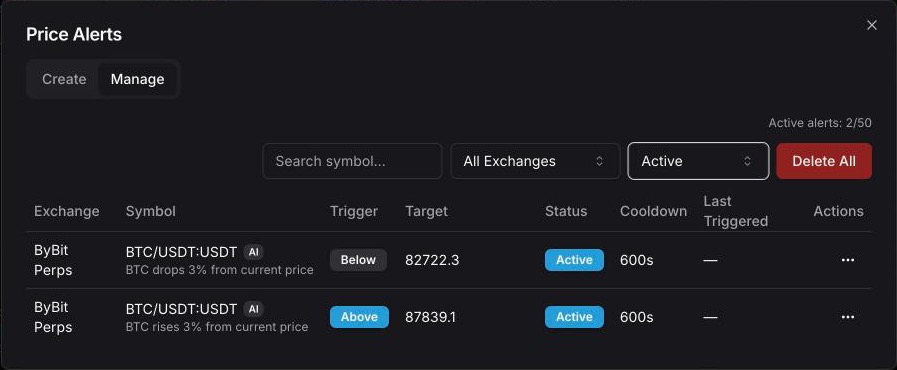
- Active alerts at the top shows how many alerts are active.
- Filter by symbol (search), by exchange (All Exchanges or one account) and by status (All, Active, Paused, Triggered).
- Click a target to edit it in place; press Enter to save.
- The ⋯ menu of each alert: Edit… (trigger, target, Repeat, cooldown, note), Duplicate, Pause or Resume, Delete.
- Delete All deletes every alert the current filters show, after a confirmation. Narrow the filters first to delete only some.
Repeat and cooldown
- One-time alert (Repeat off) fires once and moves to Triggered. Resume makes it active again.
- Repeating alert stays Active after it fires and can fire again, but not sooner than the cooldown allows.
Alerts react to a crossing, not to the price simply being past the target: a Crosses above alert with a target below the current price fires only after the price drops under the target and comes back up through it.
Where alerts arrive
When an alert fires you get:
- In the app — a pop-up with an Open button that opens the terminal on that symbol, and an entry in the notification center.
- In Telegram — a message from the Tradiflux bot, if your Telegram is linked. Its button opens your terminal with the chart drawing the alert came from, or the public chart if you don't have an account on that exchange. See Telegram.
You can switch either channel off for price alerts in Settings → Notifications — see Notifications.
Limits
Only active alerts count towards the limit; paused and triggered alerts don't.
| Plan | Active alerts |
|---|---|
| Free | 5 |
| Basic | 50 |
At the limit, pause or delete an alert to create a new one. Resuming an alert also needs a free slot.
Smart orders
Build a deal with entries, averaging orders, a stop-loss and several take-profits in one form, then let Tradiflux place, resize and close the orders on the exchange.
Notifications
The notification center, pop-ups and Telegram messages — what Tradiflux notifies you about and how to choose what you get.