
Notifications
Tradiflux tells you when something happens to your deals, bots, alerts and exchange accounts. Notifications reach you in three places:
- Pop-ups in the corner of the app while it is open;
- the notification center behind the bell in the header;
- Telegram, once you link the Tradiflux bot.
Notification center
Click the bell in the terminal header (on a phone: ⋮ → Notifications). A red badge on the bell shows how many notifications you haven't read.
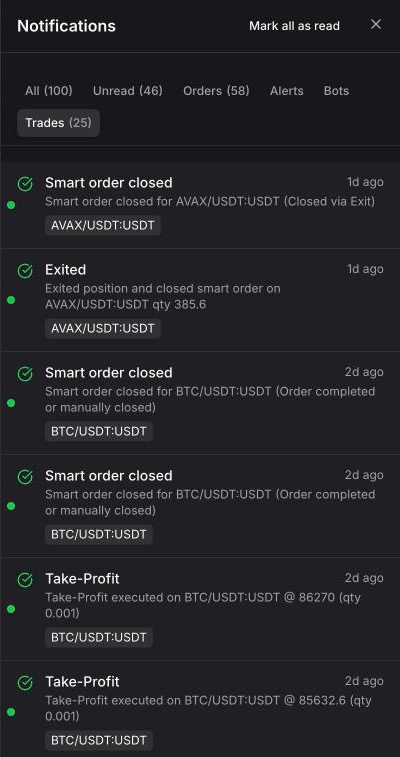
- Filters — All, Unread, Orders, Alerts, Bots, Trades, each with a count. Orders covers fills, averaging orders and order errors; Trades covers stop-losses, take-profits, exits, pauses and other changes to a deal. Exchange and connection messages appear under All.
- Mark as read — click a notification, or the × on it. Mark all as read at the top clears the unread count.
- Open deal / Open bot — the arrow icon on a notification opens the smart order in the terminal or the bot on the Bots page.
The center keeps your last 100 notifications.
Pop-ups
While the app is open, events pop up in the corner. Pop-ups about a deal or a bot have an Open deal or Open bot button; a price alert pop-up has Open, which opens the terminal on that symbol. Error events show as red pop-ups.
Choose what you get
Go to Settings → Notifications. The Notifications card is a table of events with two columns:
- Web toast — pop-ups in the app. Unticking it also hides that event from the notification center.
- Telegram — messages from the Tradiflux bot.
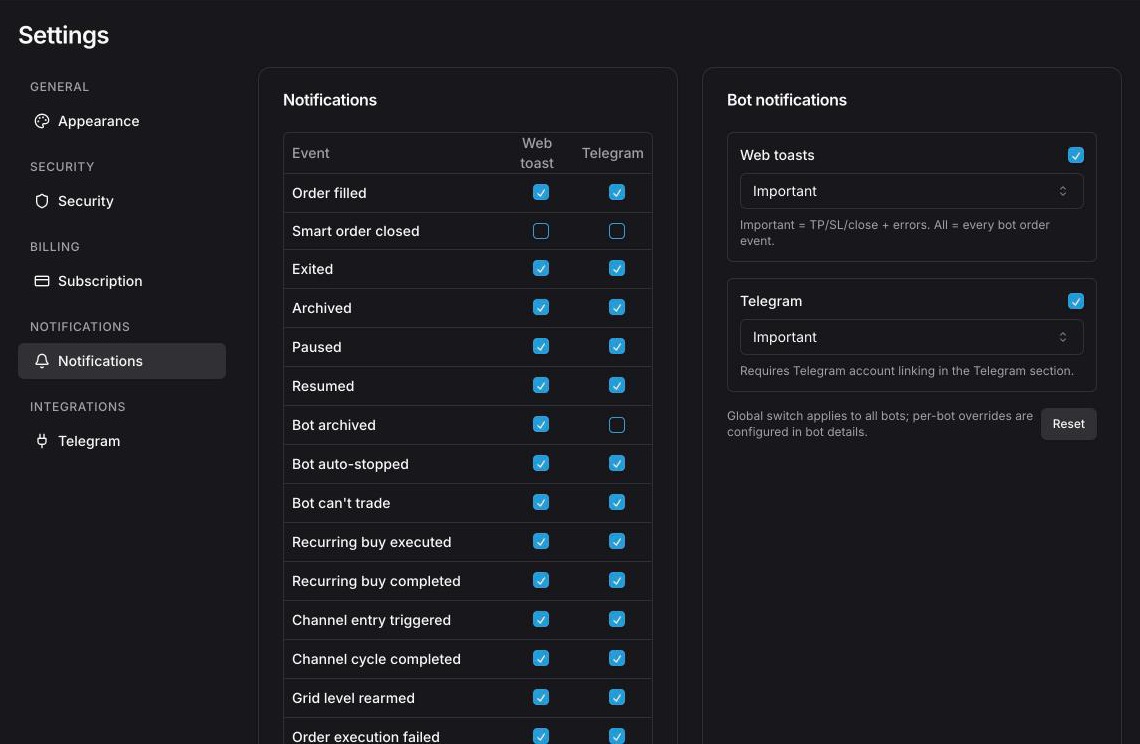
Changes save as you click. Reset to defaults restores the original choice. By default almost every event is on in both columns, except:
- Smart order closed — off in both;
- Bot archived and External position shrink — pop-ups only.
Below the table, Subscription email notifications turns email reminders before your subscription ends on or off.
Events
| Group | Events |
|---|---|
| Smart orders | Order filled, Averaging order executed, Averaging trigger limit placed, Take profit / Stop loss triggered, Take profit / Stop loss executed |
| Deal status | Smart order closed, Exited, Archived, Paused, Resumed, External position shrink |
| Price alerts | Price alert triggered |
| Bots | Bot can't trade, Bot auto-stopped, Bot archived, Grid level rearmed, Recurring buy executed, Recurring buy completed |
| Errors | Order execution failed, Trade execution error |
| Exchange keys | API key expiring — a Hyperliquid API wallet that is about to expire or has expired |
External position shrink means the position on the exchange became smaller than the deal expects — for example, you closed part of it on the exchange website.
Bot notifications
The Bot notifications card next to the table controls events that come from your bots. Each channel — Web toasts and Telegram — has an on/off checkbox and a level:
- Errors only — a bot can't trade, it stopped on its own, or an order failed.
- Important (default) — errors plus take-profits and stop-losses, closed, exited, paused, resumed and archived deals, archived bots, grid level rearmed, recurring buys executed and completed.
- All events — every order event of every bot, fills of entries and averaging orders included.
For bot events, this level is what decides whether a Telegram message is sent; the event table above doesn't apply to them. In the app a bot event shows up only if both the table and this level allow it. The settings apply to all bots; Reset restores the defaults.
Telegram delivery
Telegram messages need a linked account: Settings → Integrations → Connect Telegram, then Start in the bot. Messages come in your language and have an Open Terminal button.
To mute Telegram without changing the settings above, send /stop to the bot; /start_notifications turns messages back on. More in Telegram.
Price alerts
Get notified in the app and in Telegram when a price crosses your level — set alerts in a dialog, straight from the chart or through the AI assistant, and move them by dragging.
AI assistant
Chat with the Tradiflux AI assistant about the market and your deals. It sets price alerts and draws charts right away; orders and bots only go out after you confirm them on a card.