
Bots overview
A bot trades one symbol on one exchange account for you, around the clock, on Tradiflux servers. There are three types: Grid, DCA bot and Recurring buy. They all live on the Bots page and use your exchange account's API keys, the same as your manual orders do.
Plan requirement
Bots need the Basic plan. It allows up to 10 bots. Active and stopped bots count toward that number. Archived bots don't, so archive the ones you no longer need. On the Free plan the form refuses with "Bots are not available on the Free plan". Plans are described in Account and billing.
Which bot to choose
| Grid | DCA bot | Recurring buy | |
|---|---|---|---|
| Markets | Spot and perpetuals | Spot (Long only) and perpetuals (Long or Short) | Spot only |
| What it does | Places a limit buy on every level of a price range and sells each one a level higher | Enters at market, adds safety orders as the price moves against it, exits on a take-profit from the average entry | Buys or sells at market on a schedule |
| When to use it | A market moving sideways inside a range you expect to hold | Buying dips and averaging down, deal after deal | Long-term accumulation, or selling in portions |
| How it exits | Each level has its own take-profit one level up | One take-profit that moves with every fill, optional stop-loss | It doesn't: the coins stay on your balance |
| Backtest | Yes | Yes | No |
Details: Grid bot, DCA bot, Recurring buy.
The Bots page
Click Bots in the sidebar. The page belongs to one exchange account (/app/bots/:accountId). To work with another account, pick it in the exchange switcher in the header; to change the coin, use the symbol selector next to it.
- Chart (top left). The GRID toggle shows the levels of the grid you're setting up or have selected. The BACKTEST toggle shows the trades of the last backtest. Drag the bar under the chart to change its height.
- Active and History tabs (under the chart): your running and stopped bots, and archived bots.
- Right column: the creation form, or the details of the bot you clicked.
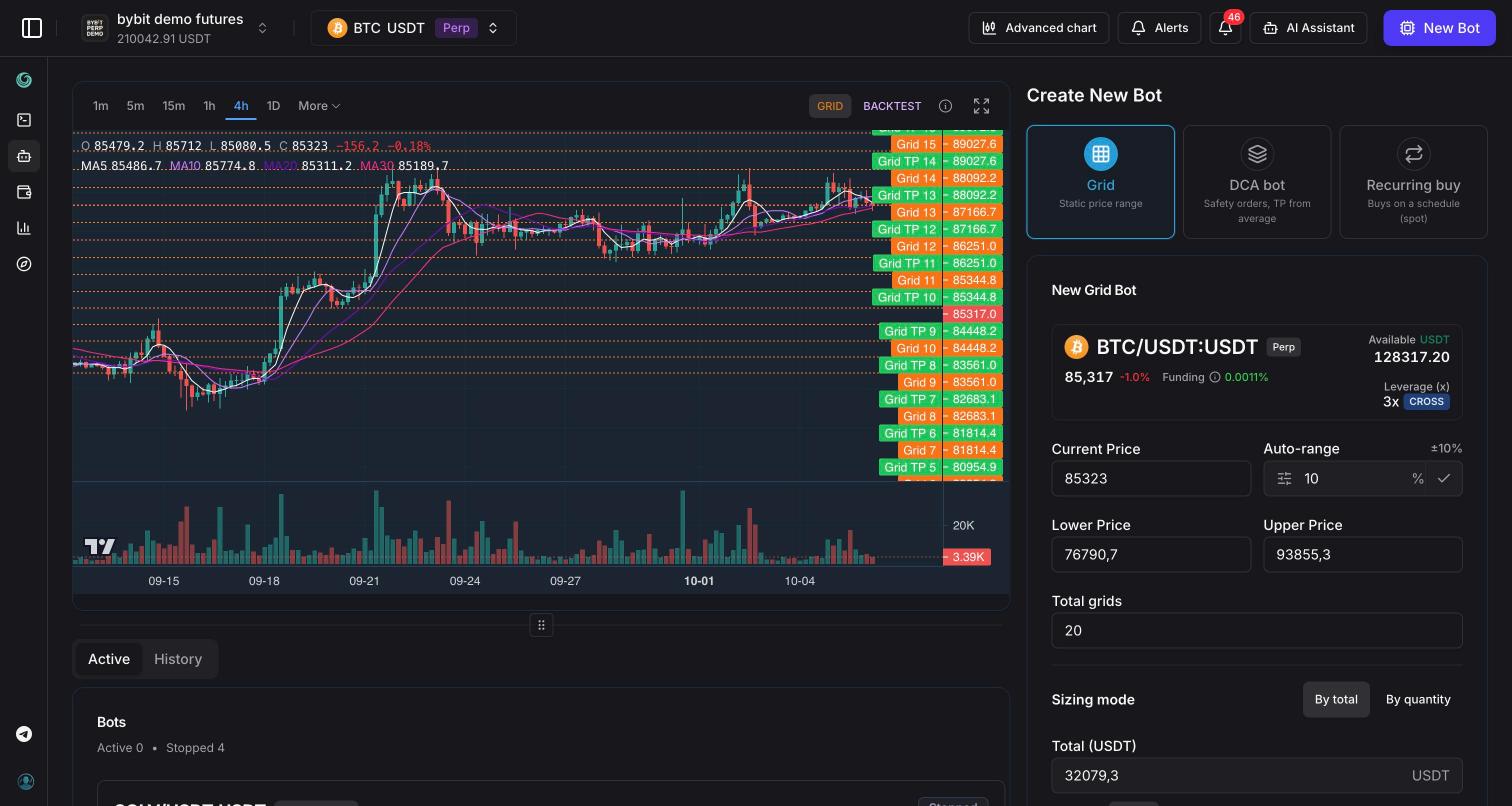
Create a bot
- Pick the exchange account and the symbol in the header.
- Click New Bot in the top right corner.
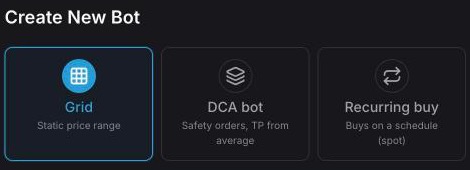
- Choose the type: Grid, DCA bot or Recurring buy.
- Fill in the form. For a grid or a DCA bot, run a backtest under the form first.
- Click Create (grid), Start DCA bot or Start recurring buy.
The bot starts right away and appears in the Active tab. The first orders go to the exchange within a few seconds.
On a phone or in a narrow window, the chart is folded under Chart and the + button in the bottom right corner opens the creation form.
The list of bots
The Active tab shows a count (Active N • Stopped N) and a card for each bot:
- symbol, type (GRID, DCA, Recurring), status (active or stopped), bot ID, time of the last update;
- Active Orders (open deals of the bot), Grids for a grid, Interval for a recurring buy;
- Stop Reason for a stopped bot, and who stopped it (user or system);
- Total PnL with its percentage, Realized, Unrealized and Open Position.
Click a card to open the bot's details.
The History tab lists archived bots with their final PnL. Archived bots don't run and don't count toward your plan limit.
Bot details
- Order feed opens the bot's latest fills (entries, take-profits, stop-losses, exits) with price, amount, fee and PnL. The fills of the selected bot are also marked on the chart.
- Performance: Total PnL (realized plus unrealized, fees included), Realized, Unrealized, Budget or Invested, Open qty. The percentage next to Total PnL is measured against the budget: the grid's total size, or the funds a DCA bot needs if every safety order fills. A recurring buy shows Invested instead.
- Settings of the bot: Grid config, DCA settings or Recurring buy. They are read-only: "Settings are read-only here. Create a new bot to change them."
- Runtime: last sync, errors and the time of the next try, open deals, creation and update time.
- For a grid: Plan summary and the Create grid bot with these settings button. It copies the grid into the creation form so you can change something and start a new bot.
Stop, restart, archive, delete
There is no pause and no editing of a running bot. These are the actions on a bot card:
- Stop (No Deals) — the bot stops opening deals. Orders that haven't filled yet are canceled. Deals that are already open keep their take-profit and stop-loss and close on their own. The bot stays in the Active tab as stopped.
- Start Bot — restarts a stopped bot with the same settings. A DCA bot that made all its deals, or a recurring buy that reached its limit, can't be restarted: create a new one.
- Stop & Archive — asks "Stop, close, and archive this bot?" first. After you confirm, the bot's open deals are closed at market, its waiting orders are canceled and it moves to History. This runs in the background and can take a minute.
- Archive Bot (on a stopped bot) — the same confirmation and the same result: whatever the bot still holds is closed at market, then it moves to History.
- Delete permanently (in History) — removes the archived bot's record for good. It is refused while the bot still has open deals.
Closing at market only touches what the bot itself holds. Your other orders and coins on the account stay as they are.
On a phone the list shows compact cards: tap one to see its details. The start, stop and archive buttons and the backtests are on the full-width desktop layout. To stop a bot from a phone, you can ask the AI assistant.
When a bot stops by itself
- External position detected or Liquidated — a perpetual position the bot holds shrank outside the bot (for example, you closed it on the exchange) or was liquidated. The bot stops opening deals: its waiting orders are canceled, open deals keep their exits. You get a "Bot auto-stopped" notification.
- Stop-loss hit — a DCA bot's deal closed on its stop-loss.
- Completed — a DCA bot made all its deals, or a recurring buy reached its budget, its number of orders or its end date.
If the exchange rejects the bot's orders (not enough balance, rejected API key, refused leverage), the bot doesn't stop. You get a "Bot can't trade" notification, and it keeps retrying with growing pauses. The error and the time of the next try are shown under Runtime in the details.
Notifications
Bot events go to the notification center and to Telegram. Pick how much you get in Settings → Notifications → Bot notifications, separately for Web toasts and Telegram:
- Errors only — errors, auto-stops, liquidation warnings;
- Important (default) — also take-profits, stop-losses, closed deals, grid levels re-armed, recurring orders;
- All events — every order event of every bot.
More in Notifications.
Bots through the AI assistant
The AI assistant can set up any of the three bots from a chat message, for example:
Grid bot on ETH from 2,800 to 3,400, 20 levels, 25 USDT per level
It answers with a proposal card that lists every parameter. Grid and DCA bot cards also carry a 30-day backtest. Nothing starts until you press Confirm. The assistant can also list your bots and propose stopping one. It can create a short grid on perpetuals, which the form doesn't offer. On Explore, the grid replay panel has a Create this bot with AI button. The AI assistant needs the Basic plan.
See also
Signals
Rule-based crypto trade setups with an honest track record — every signal is scored as a trade after fees and funding, and a setup is published only after its paper record passes the gate.
Grid bot
How the grid bot works, every field of its form, leverage on perpetuals, the backtest, and how to stop a grid.