
Trading terminal
The terminal lives at /app/terminal. It always works with one exchange account and one symbol at a time; both are part of the page address, so a link or a refresh brings you back to the same market.
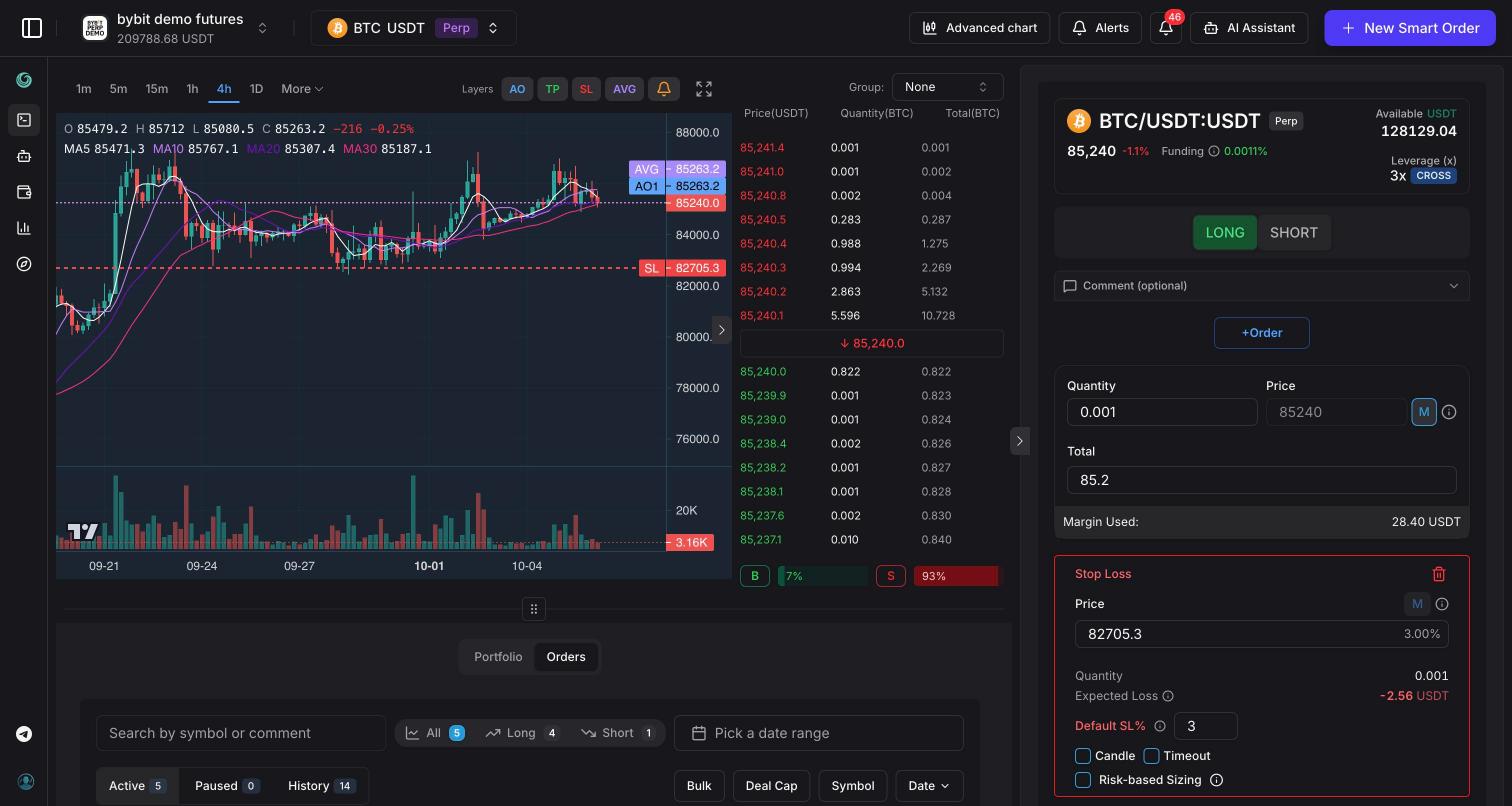
- Exchange account — switch between your connected accounts or add a new one.
- Symbol — pick the market to trade (Cmd/Ctrl + K).
- Timeframes and chart layers — candle interval and which order lines the chart shows.
- Chart — candles with volume and moving averages, your order lines and price alerts.
- Order book — live bids and asks.
- Smart order form — build a new smart order or edit the one you opened.
- Alerts — create and manage price alerts.
- Notifications — the notification center.
- AI Assistant — opens the assistant chat.
- Orders and portfolio tabs — your smart orders and the assets and positions on the exchange.
Drag the handle between the chart and the tabs to change the chart height (double-click resets it). The arrow on the left edge of the form hides or shows the form.
Header
- Exchange switcher — your accounts with balances. Add connects another exchange, the pencil next to an account edits its name and keys. See Exchanges.
- Symbol selector — see below.
- Advanced chart — opens the same symbol on the free Explore chart powered by TradingView.
- Alerts — the price alerts dialog. The badge shows how many alerts are active. See Price alerts.
- Notifications (bell) — the notification center. See Notifications.
- AI Assistant — the chat panel. See AI assistant.
- New Smart Order — clears the form for a new deal on the current symbol.
The same header appears on the Bots page, where the last button becomes New Bot. On a phone these actions sit under the ⋮ button.
If an exchange account has a problem, a banner appears under the header: invalid API keys (Edit keys), an exchange that doesn't respond (Retry now), or a Hyperliquid API wallet that expires within 7 days or has expired (Edit keys).
Choosing a symbol
Click the symbol in the header or press Cmd + K (Mac) / Ctrl + K (Windows, Linux).
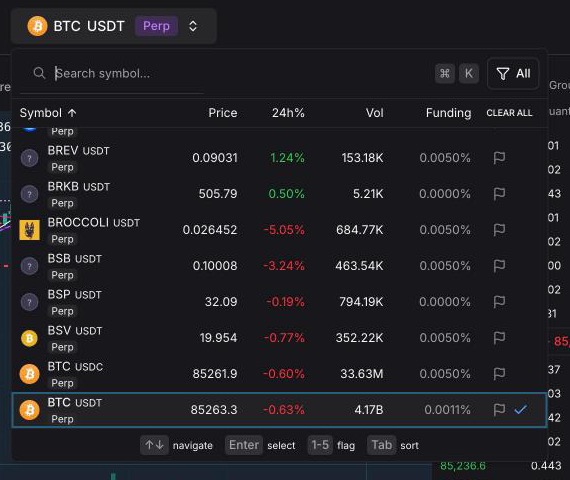
- Search — type part of a symbol name.
- Columns — Price, 24h%, Vol and, on perpetual markets, Funding. Click a column header to sort by it; click again to reverse. The list opens sorted by volume.
- Badges — Perp or Spot next to each symbol.
- Colour flags — mark symbols red, orange, yellow, green or blue. Click the flag in a row, or highlight a row and press 1–5; 0 or Backspace removes the flag. The filter button above the list shows All, Flagged or a single colour. Clear All removes every flag.
- Keyboard — ↑ ↓ to move, Enter to open, Tab / Shift + Tab to switch the sort column, Esc to close.
Chart
The chart shows candles, a volume pane and four simple moving averages (5, 10, 20 and 30). The legend in the top left shows open, high, low, close and the moving-average values under the cursor.
- Timeframes — 1m, 5m, 15m, 1h, 4h and 1D are always visible; More holds the rest the exchange offers (3m, 30m, 2h, 6h, 12h, 1W, 1M…). The terminal remembers your choice.
- Layers — toggles for AO (entries), TP, SL, AVG (average entry price) and the bell (your price alerts). Turned-off layers disappear from the chart and can't be dragged.
- Fullscreen — the button on the right of the toolbar. On a phone the same spot opens the order book.
When the chart area is narrow, timeframes and layers fold into a ☰ menu.
Order lines
The chart draws the smart order that is open in the form — a new draft or a deal you selected in the Orders tab:
- AO1, AO2… — entry and averaging orders (blue).
- TP1, TP2… — take-profits (green).
- SL — the stop-loss (red).
- AVG — the average entry price (violet).
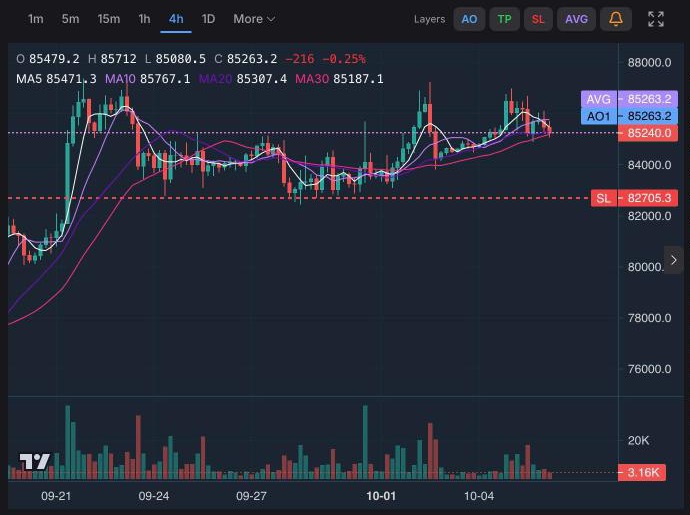
Drag a line to change its price. Hover over a line until the cursor changes, then drag it up or down; on a phone, press on the line and slide. The new price is rounded to the market's tick and written into the form. Press Esc while dragging to put the line back.
Dragging only changes the form. For a new order, submit it as usual; for a live deal, click Update Order to send the change to the exchange. Lines of orders that have already filled stay where they are.
Price alerts on the chart
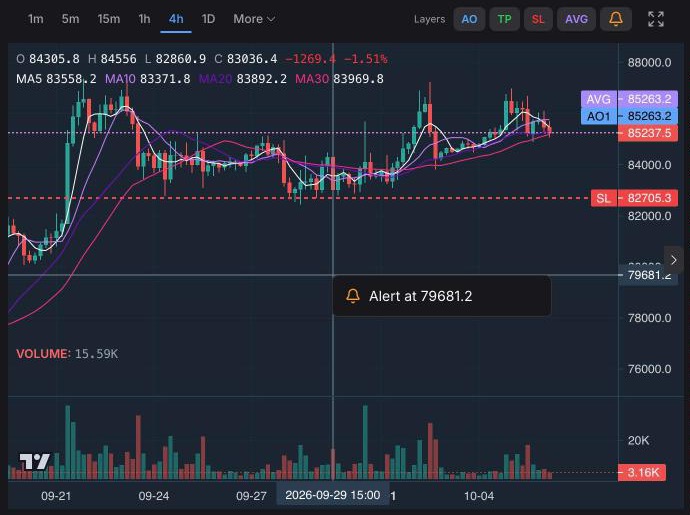
Your active alerts on this symbol and exchange are drawn as dashed amber lines with a 🔔 label.
- Move an alert — drag its line. The alert is saved at the new price, and the direction (crosses above or below) is picked again from the current price.
- Set an alert — right-click the chart (on a phone, press and hold) and choose Alert at … with the price under the cursor. This creates a one-time alert; the direction is picked from the current price.
Alerts that follow a trend line show 🔔↗. They sit at the line's current value, move with it every minute and can't be dragged. More in Price alerts.
AI assistant drawings
When the AI assistant draws levels, trend lines or Fibonacci on a chart, Open in terminal on its chart card opens the terminal with the drawing on top. A chip at the top of the chart shows the drawing's title, a TradingView Advanced Charts link to the same drawing on Explore, and × to hide it. The terminal switches to the drawing's timeframe once. If you move to another symbol, the chip says Drawing for … with a Show button.
Order book
On desktop the order book sits to the right of the chart. Group merges price levels into bigger steps; the arrow on its edge collapses the book to give the chart more room. On a phone, tap the book icon in the chart toolbar.
Symbol card
The top of the order form shows the symbol with its Perp or Spot badge, the last price and 24-hour change. On perpetual markets you also see the current Funding rate; the ⓘ next to it explains who pays whom and counts down to the next funding payment.
On the right are your available balance and, on perpetual markets, leverage and margin mode. Click the leverage to open Update Leverage: choose a value (up to the market's maximum) and Cross or Isolated margin, then Confirm. The change is applied on the exchange right away. Some exchanges don't let you switch margin mode through the API; then the field is locked and you change it on the exchange website.
Portfolio tab
The Portfolio tab lists the assets and positions on the current exchange account — including those opened outside Tradiflux.
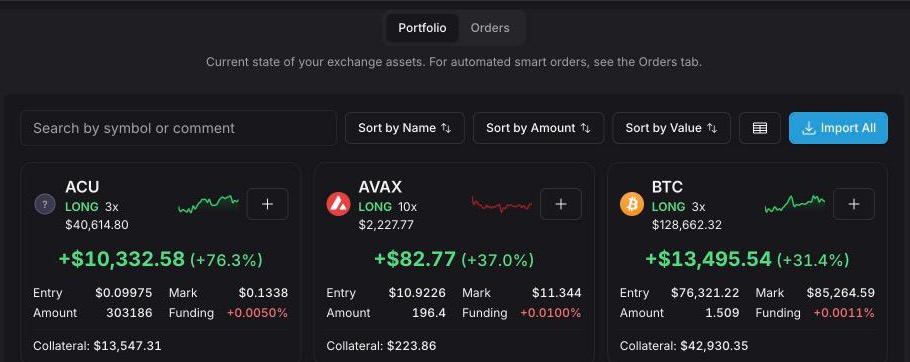
- Positions show Side, Amount, Entry, Mark, Liq. Price, Leverage, Collateral, Funding and UPNL.
- Small balances are hidden; tick Show all assets to see them.
- Add takes an existing position under Tradiflux control as a smart order. The menu next to it also offers Add with Take Profit, Add with Stop Loss and Add with Take Profit & Stop Loss — these pick up the take-profit and stop-loss orders you already have on the exchange.
- Import All opens Import Positions: tick positions (or, on the Open Orders tab, limit orders for assets you don't hold yet), choose whether to import take-profit and stop-loss orders, and click Import … items.
If an imported position's stop-loss and take-profit orders don't cover its full size, the deal shows Automation paused — see Smart orders.
Orders tab
The Orders tab lists your smart orders on the current exchange account.
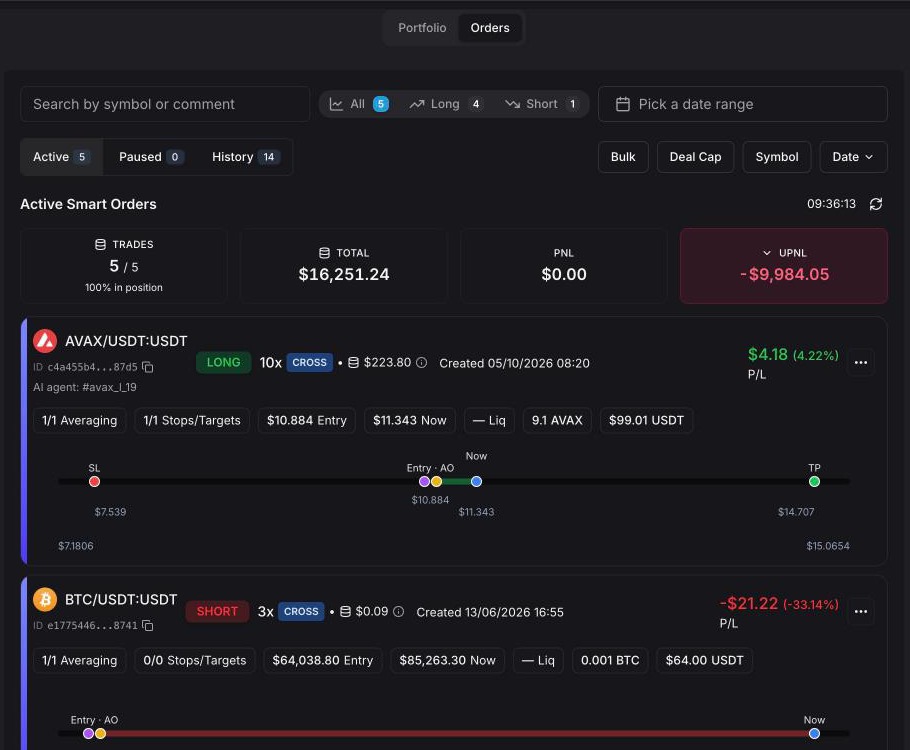
- Active, Paused, History — with a count on each.
- Search by symbol or comment, a Long / Short filter and a Date range with presets (on a phone, the filters button next to search).
- Symbol and Date — sorting.
- Bulk — turns on selection. Select deals (or Select all visible) and run Exit (market) or Archive; in History, Delete.
- Deal Cap — limits how many smart orders can be in the market at once on this account. See Smart orders.
- Resume all — on the Paused tab.
When a cap is set, the Active counter shows it, for example 3/5.
Click a deal to open it in the form and on the chart. Each deal has buttons for Pause / Resume, Exit (once an entry has filled), Archive and Orders — see Smart orders. Orders opens the list of exchange orders the deal placed (date, type, side, quantity, price, fee, profit, status) and its Activity Feed — a timeline of what you, the bot and the system did with the deal.
In History, the info icon next to Realized P/L breaks the result down into entries, closes, gross profit and fees. The trash icon deletes a closed deal from history.
Mobile terminal
On a phone the terminal has a bottom bar with four tabs: Chart, Portfolio, Orders and Form.
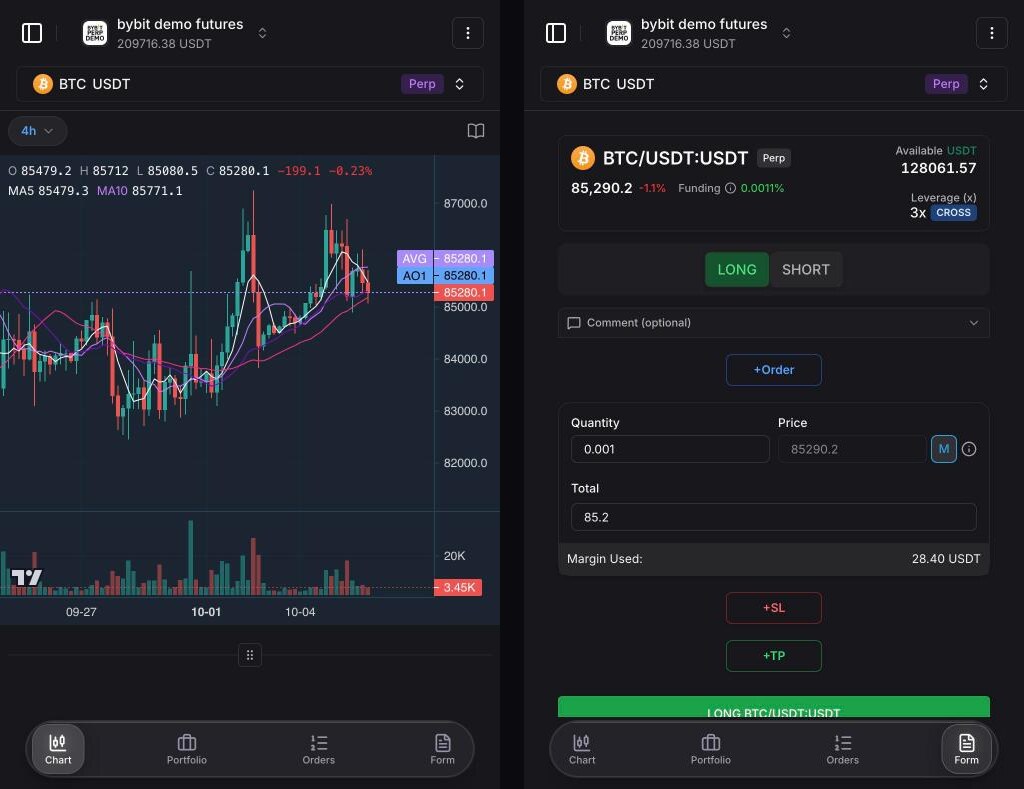
- The symbol selector takes its own row under the header; Alerts, Notifications, AI Assistant, Advanced chart and New Smart Order are under ⋮.
- Timeframes open from the chip in the chart toolbar; the book icon opens the order book.
- Drag order and alert lines with your finger; press and hold the chart to set an alert.
- The Form tab keeps your draft — including prices you dragged on the chart — while you switch tabs.
- Tapping a deal in Orders opens it on the Form tab.
Coming from Explore
Trade in terminal on the Explore chart opens the terminal with the same symbol and the form ready. A Back to the chart bar at the top takes you back to Explore.
Getting started
What Tradiflux is and how to start — sign up, try a demo account, place your first smart order, connect an exchange and link Telegram.
Smart orders
Build a deal with entries, averaging orders, a stop-loss and several take-profits in one form, then let Tradiflux place, resize and close the orders on the exchange.